
Tacitine Hotspot server Provides usage and validity alerts to the end customer via email and SMS.
This article explains how to configure email and SMS settings.
Note: For SMS alerts, we need SMS gateway details.
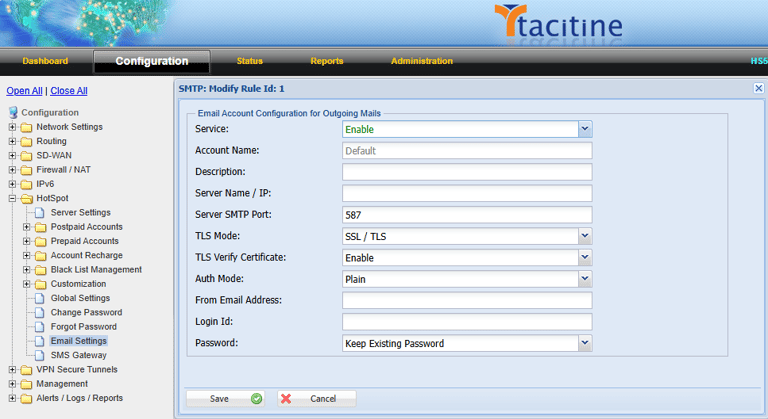
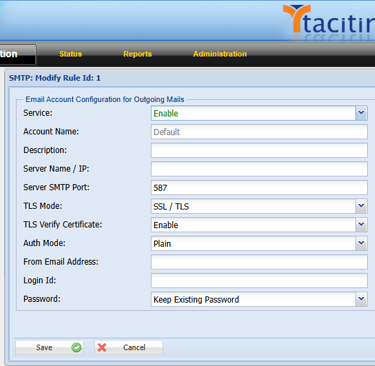
Procedure For Email Settings
How to Configure the Email and SMS Settings
Step 1: Login to the Tacitine. (If you are configuring the Tacitine for the first time, the default Lan IP is https://192.168.100.1:4433)and Default username: admin & Password: admin99
Step 2: Go to Configuration > Hotspot tab
Step 3: Click the Email Settings –> Default
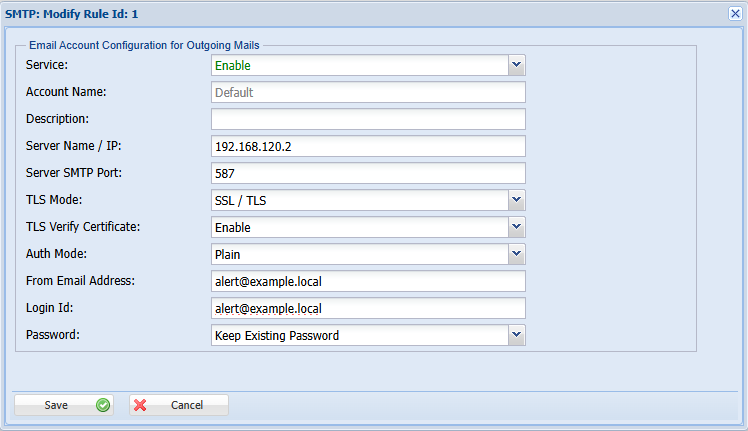
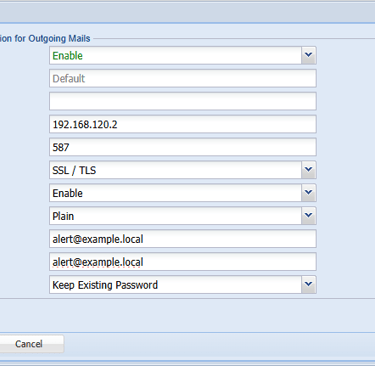
Step 4: Modify the account and enter your email credential like server name, port, TLS mode.
Step 5: Enter your Mail address and its password. (this is the sender address for getting alerts and reports)
Step 6: Click Save > Restart Service (Enable the email alerts in usage plans)
Step 7: Now send a test email to check email is going success.
Procedure For SMS Settings
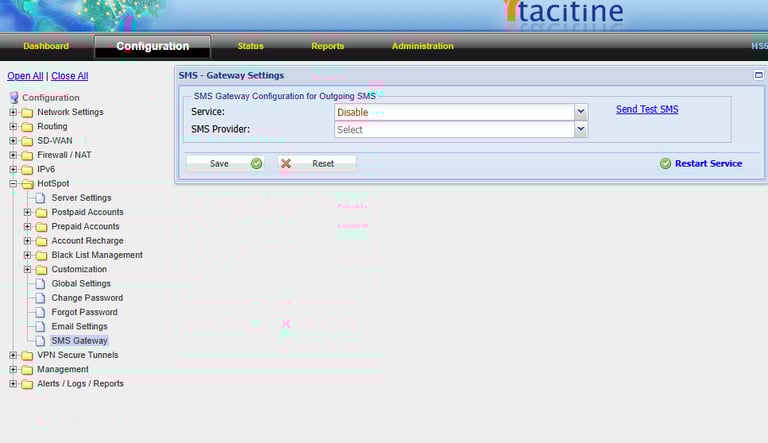
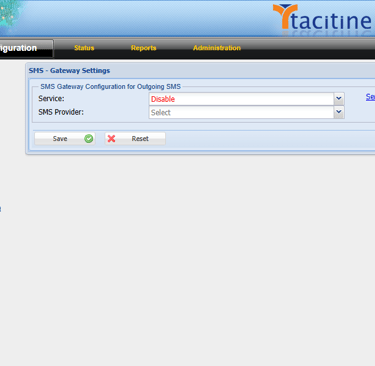
Step 1: Go to Configuration > Hotspot tab
Step 2: Click the SMS Gateway –> Enable
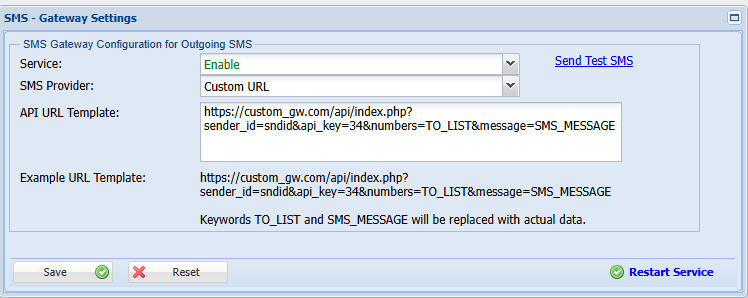
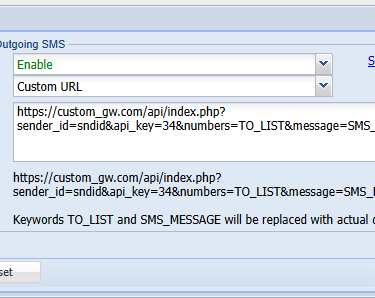
Step 3: Select the SMS provider or use custom URL for not listed providers.
Step 4: Click Save > Restart Service (Enable the SMS alerts in usage plans)
Step 5: Now send test SMS to check SMS is going success.